Truly fine
Documentation.
Browse by type section
Last update:
This feature was introduced in version 5.4.0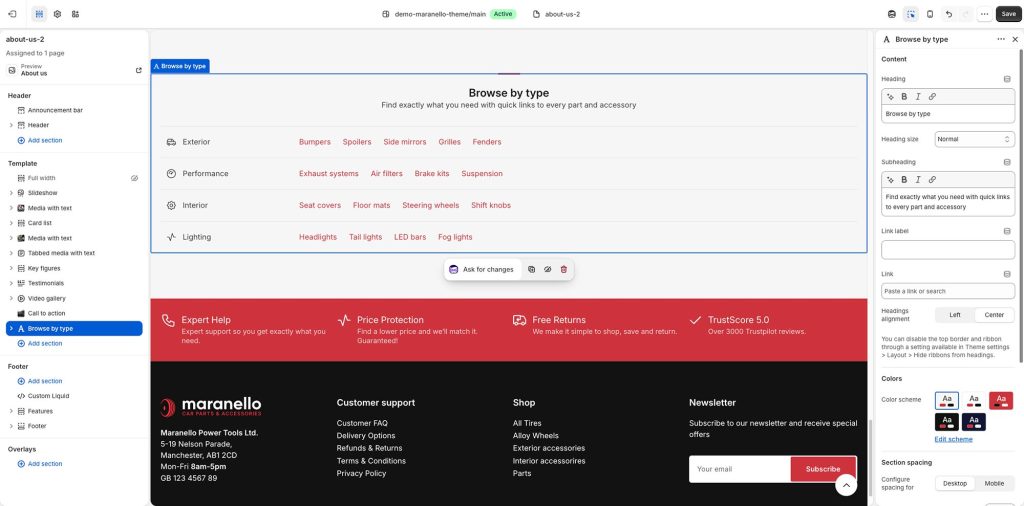
The Browse by type section allows you to build lists of plain text links in a horizontal layout.
The section is composed of one or more Browse Type Group blocks, with each one containing one or more Link blocks.
Section settings
Heading: Set a title for this section. This is optional.
Heading size: Adjust the size of your heading to make your message stand out. Available options: Small, Normal, Large, Extra large, and Extra extra large.
Subheading: Set a subtitle for this section. Also optional.
Link label + Link: With these two settings you can create a link that will appear at the top right corner of the section. For example, if you have used this section to showcase a list of popular collections, you can add a link to your “All collections” page.
Headings alignment: Align the heading and subheading Left or Center.
Colors
Color scheme: Select one of the predefined color schemes as defined in Theme settings > Colors. For more information regarding the color schemes please refer to our article about creating your own color scheme.
Section spacing
The section spacing settings gives you the option to adjust the top & bottom section spacing values. Please note: If you select a color scheme with a background color, these settings will affect the spacing between the top or bottom of the section and the content of the section.
SEO
Heading tag: Select the appropriate heading level (H1, H2, or H3) based on how you want the section title to appear.
Visibility
Show section on desktop: Enable or disable the section’s visibility on desktop devices.
Show section on mobile: Enable or disable the section’s visibility on mobile devices.
Browse type group block
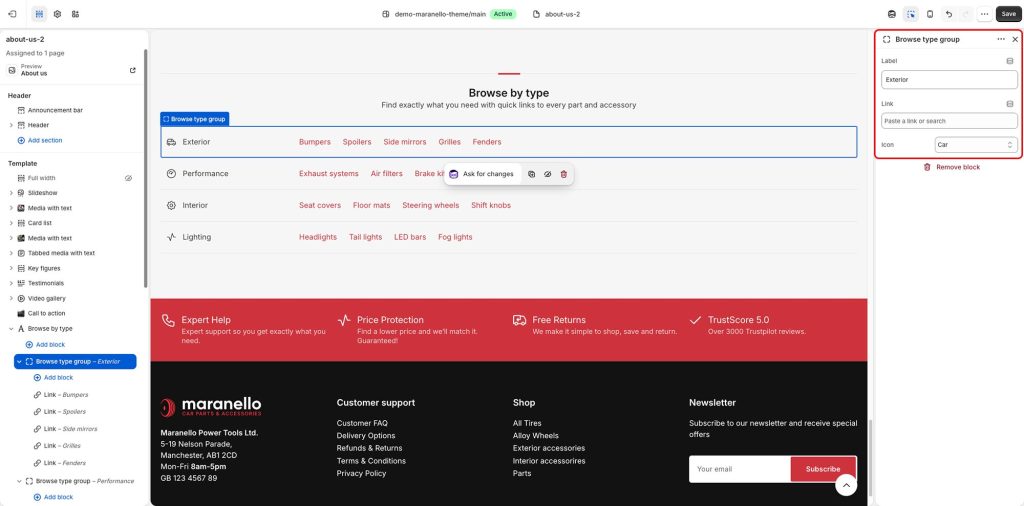
Label: The title of the browse type group.
Link: You can optionally convert the title to a link (e.g., page, collection, product, external link, etc.).
Icon: Optionally prefix the label with icon by selecting it from the list. You can optionally use a custom icon by selecting “Custom icon” from the list, and then selecting an image.
Link block
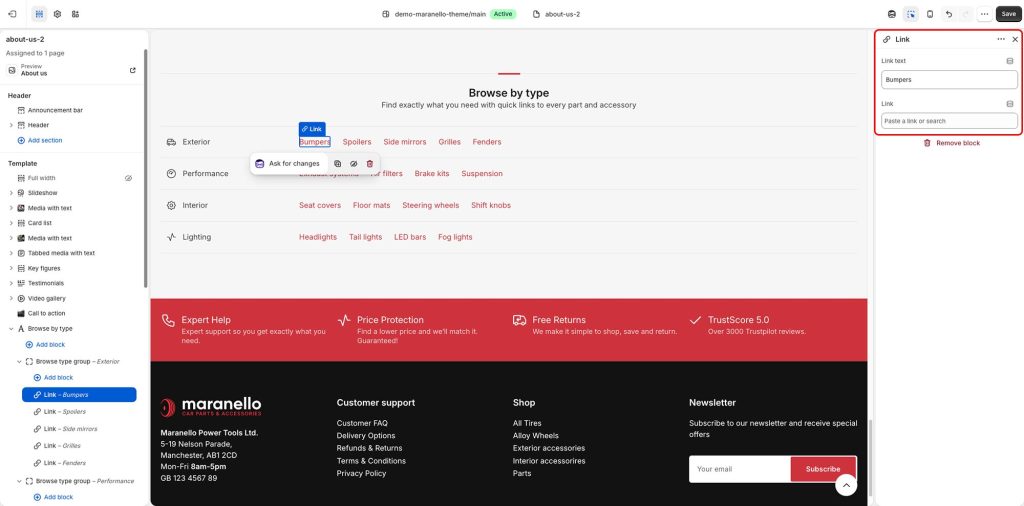
Link text: Set the text of the link.
Link: Set the destination for the link item (e.g., subcollection, page, product, external link, etc.).
Can't find what you are looking for? Feel free to submit a request.