Truly fine
Documentation.
Enabling pre-orders on products
Last update:
In today’s competitive e-commerce environment, engaging customer’s interest even before products are even released, is crucial. One effective way to achieve this is by allowing pre-orders.
A pre-order product is a product that was never in stock before (perhaps not even released yet), however you expect to stock it and fulfill its pre-orders when it becomes available.
In contrast, a backorder product is a product that used to be in stock, but its stock has been exhausted. However, it can be purchased, and it will be fullfilled once it’s back in stock.
In this guide, we will walk you through the process of setting up pre-orders for your upcoming products using a special “pre-order” template in the Athens theme. Whether you’re new to Shopify or looking to optimize your store’s functionality, this guide will provide step-by-step instructions to help you leverage the power of pre-orders and keep your sales going strong.
Setting up the product
A couple steps are needed to set up a product for pre-ordering:
- Navigate to Products: From your Shopify admin, click Products in the left-hand menu.
- Select the product: From the products page, select the product you wish to allow pre-orders for. You can do this by clicking on the product’s name.
- Assign the Pre-order template: On the right-hand side of the product page, locate Theme template and select pre-order from the dropdown.
- Enable “Continue selling when out of stock”: In the Inventory section, expand More details and enable Continue selling when out of stock.
If the product has variants, make sure Continue selling when out of stock is enabled for each variant you want to allow pre-orders for. - Save your Changes: After you’ve assigned the pre-order template and checked the Continue selling when out of stock setting, click on the “Save” button at the top right of the product page to save your changes.
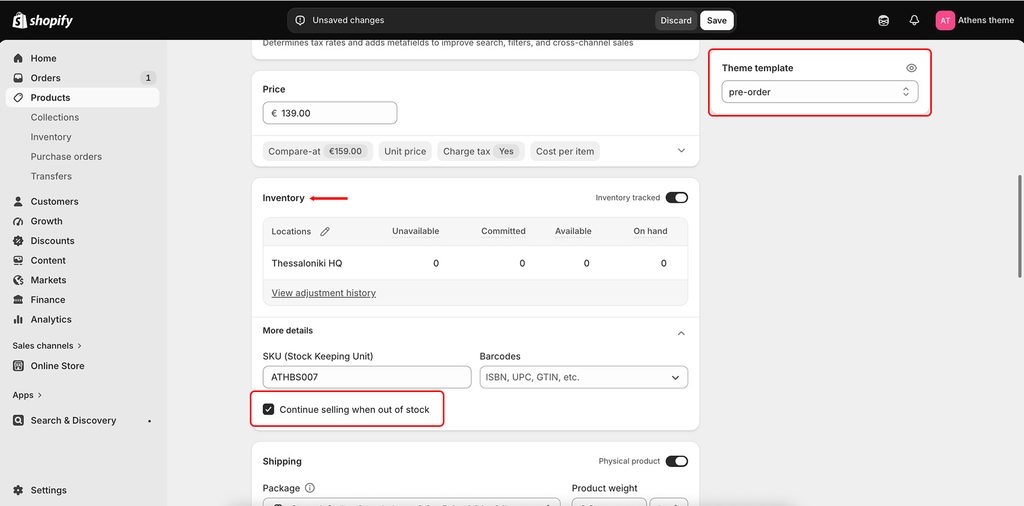
Now, even when the product or its variants are out of stock, customers will be able to pre-order them. You will notice that the product’s “Add to cart” button will say “Pre-order” and its availability badge will say “Coming soon”.

Remember to manage your inventory properly to fulfill these pre-orders when the product is stocked.
Can't find what you are looking for? Feel free to submit a request.