Truly fine
Documentation.
Key figures section
Last update:
This feature was introduced in version 6.5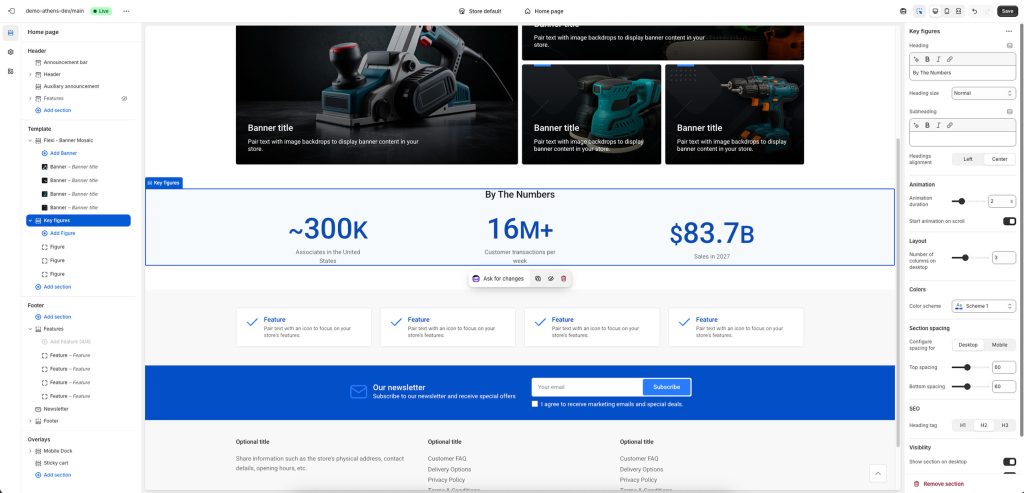
The key figures section allows you to present important numeric values in a animated, visually impressing way.
Section settings
Heading: Set a title for this section. This is optional.
Heading size: Adjust the size of your heading to make your message stand out. Available options: Small, Normal, Large, Extra large, and Extra extra large.
Subheading: Set a subtitle for this section. Also optional.
Headings alignment: Align the heading and subheading Left or Center.
Animation
Animation duration: The amount of seconds (1-5) it will take for the animation to end. The bigger the number, the slower the animation.
Start animation on scroll: When enabled, the animation will begin once the section comes into view.
Layout
Number of columns on desktop: Sets the number of columns (2 or 5).
Colors
Color scheme: Select one of the predefined color schemes as defined in Theme settings > Colors. For more information regarding the color schemes please refer to our article about creating your own color scheme.
Section spacing
The section spacing settings gives you the option to adjust the top & bottom section spacing values separately for desktop and mobile. Please note: If you select a color scheme with a background color, these settings will affect the spacing between the top or bottom of the section and the content of the section.
SEO
Heading tag: Select the appropriate heading level (H1, H2, or H3) based on how you want the section title to appear.
Visibility
Show section on desktop: Enable or disable the section’s visibility on desktop devices.
Show section on mobile: Enable or disable the section’s visibility on mobile devices.
Block settings
Prefix: Text preceding the number. Optional. Ideally kept short.
Number: The actual number that will get animated, starting from zero. Required.
Suffix: Text following the number. Optional. Ideally kept short.
Description: Short text that describes the number. Optional.
Figure size: Set the font size for the figure (prefix, number, and suffix). The number is always slightly larger than the prefix and suffix.
Can't find what you are looking for? Feel free to submit a request.