Truly fine
Documentation.
Live Notifications for products
Last update:
This section was introduced in version 4.1The “Live Notifications for Products” feature displays product-specific pop-up notifications first on the product page, followed by the general site notifications. This helps highlight important updates or offers directly related to the product.
Steps to set up live notifications for products
Follow the steps below to create live notifications for products.
- From your Shopify admin, go to Settings.
- From the settings menu on the left, navigate to Metafields and metaobjects.
- Select Products.
- Click Add definition.
- In the Add product metafield definition, write “Live Notification” in the Name field. Make sure the key is live_notification (it appears below the name as custom.live_notification). Then, under Select type, click on “Select type” and choose “Rich text”.
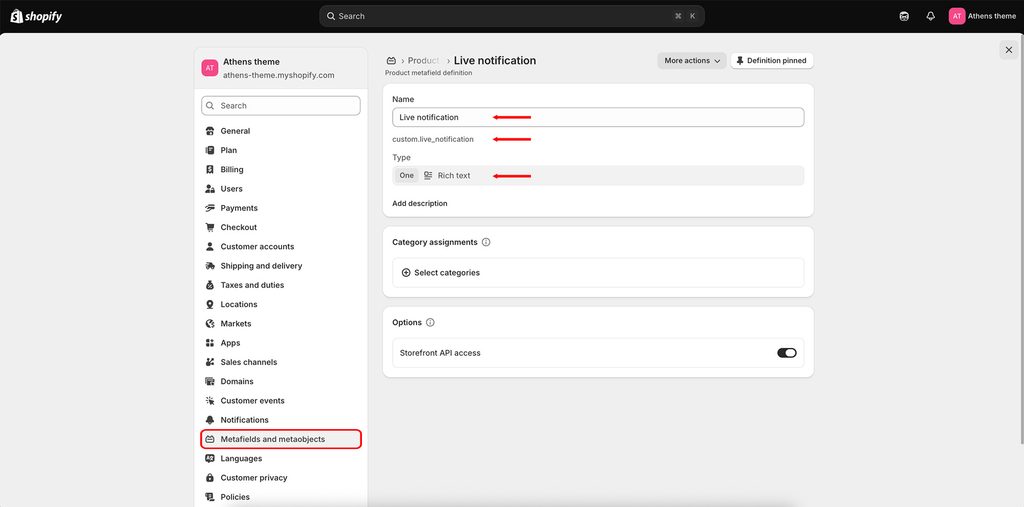
- Click Save to save your changes.
- From your Shopify admin, navigate to Products.
- Select a product and scroll down to the Product metafields section, where you will see the “Live Notification” field appear.

- Click on the field and enter the message you want to display, then click Save to save your changes.
- In the Shopify Customize page, click on “Sections”, then from the left sidebar, go to “Overlays” and add the “Live Notifications” section.

To set up Live Notifications globally, check out this guide for more information.
Can't find what you are looking for? Feel free to submit a request.