Truly fine
Documentation.
Newsletter section
Last update:
Using the newsletter section you can create a flexible form field to acquire new email leads from your customers.
Section settings
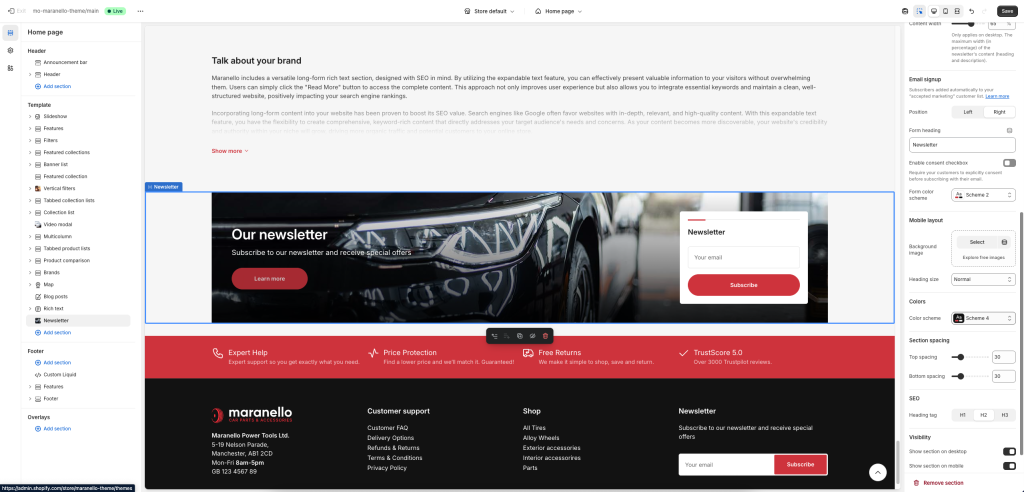
Background and media
Background image: Display an image as the section’s background.
Overlay type: Select whether to use a Gradient or a Color for the background overlay.
Overlay background: Allows you to apply an overlay color or gradient over the background color/image.
Content
Heading: The newsletter section’s heading.
Heading size: The heading’s font size.
Text: A brief description under the heading.
Button label: Set the label of the button (optional). Leave the label empty to hide the button.
Link: Set the URL that the optional button will link to.
Layout
Make section full width: Enable to apply the section’s background over the full width of the page.
Content width: Optionally tweak the section’s content width. This setting applies only on desktop, and only affects the section’s content area (heading and text).
Email signup
Subscribers are automatically added to your “Accepted marketing” customer list. Learn more.
Position: Allows you to position the newsletter signup form on the left or on the right.
Form heading: Optional title on top of the signup form.
Enable consent checkbox: You can acquire consent from your users before they opt-in to your newsletter by enabling the this setting.
Consent checkbox text: The message shown next to the checkbox where customers agree to receive marketing emails.
Form color scheme: Applies only on the signup form card. Select one of the predefined color schemes as defined in Theme settings > Colors. For more information regarding the color schemes please refer to our article about creating your own color scheme.
Mobile layout
Background image: You can optionally select a different background image for mobile.
Heading size: The heading’s size on mobile.
Colors
Color scheme: Select one of the predefined color schemes as defined in Theme settings > Colors. For more information regarding the color schemes please refer to our article about creating your own color scheme.
Section spacing
The section spacing settings gives you the option to adjust the top & bottom section spacing values. Please note: If you select a color scheme with a background color, these settings will affect the spacing between the top or bottom of the section and the content of the section.
SEO
Heading tag: Select the appropriate heading level (H1, H2, or H3) based on how you want the section title to appear.
Visibility
Show section on desktop: Enable or disable the section’s visibility on desktop devices.
Show section on mobile: Enable or disable the section’s visibility on mobile devices.
Can't find what you are looking for? Feel free to submit a request.