Truly fine
Documentation.
Scrolling rows section
Last update:
This feature was introduced in version 5.4.0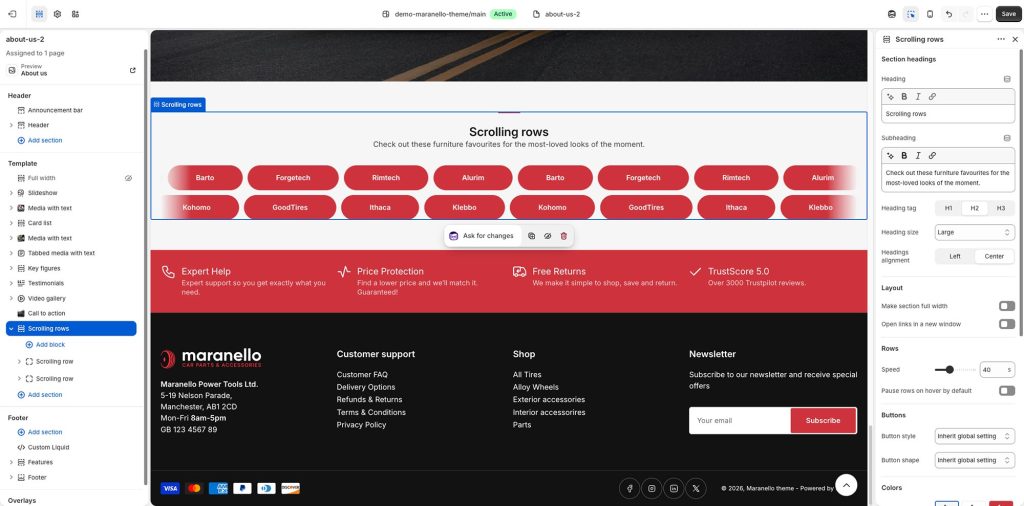
The Scrolling rows section allows you to display multiple animated (scrolling) rows of links, creating interesting effects and eye-catching results by configuring the direction of scrolling.
The section is composed of one or more Scrolling row blocks, with each one containing one or more Link blocks.
Section settings
Heading: Set a title for this section. This is optional.
Subheading: Set a subtitle for this section. Also optional.
Heading size: Adjust the size of your heading to make your message stand out. Available options: Small, Normal, Large, Extra large, and Extra extra large.
Headings alignment: Align the heading and subheading Left or Center.
Layout
Make section full width: Choose to extend the section to the full width of the viewer’s screen for a bold, immersive look.
Open links in a new window: When enabled, links will open in a new windows/tab.
Rows
Speed: Configure the speed (time to complete) of the animation in seconds (10 – 100). The bigger the number, the slower the animation.
Pause rows on hover by default: When enabled, the scrolling will pause when a customer hovers their mouse over the text, allowing them to read without the distraction of movement.
Buttons
Button style: Choose between Solid and Outline buttons. By default, Maranello will show buttons as solid (i.e. a solid background color). You can choose to change the buttons’ default styling to Outline which will force a transparent background. Select “Inherit global setting” to follow the theme’s global configuration (Theme settings > Buttons > Style).
Button shape: Choose your buttons shape (border radius). By default, Maranello displays buttons with slightly rounded edges (the Rounded option). You can choose to have them Square (no rounded edges) or Pills (pronounced rounded edges). Select “Inherit global setting” to follow the theme’s global configuration (Theme settings > Buttons > Shape).
Colors
Color scheme: Select one of the predefined color schemes as defined in Theme settings > Colors. For more information regarding the color schemes please refer to our article about creating your own color scheme.
Section spacing
The section spacing settings gives you the option to adjust the top & bottom section spacing values. Please note: If you select a color scheme with a background color, these settings will affect the spacing between the top or bottom of the section and the content of the section.
SEO
Heading tag: Select the appropriate heading level (H1, H2, or H3) based on how you want the section title to appear.
Visibility
Show section on desktop: Enable or disable the section’s visibility on desktop devices.
Show section on mobile: Enable or disable the section’s visibility on mobile devices.
Scrolling row block
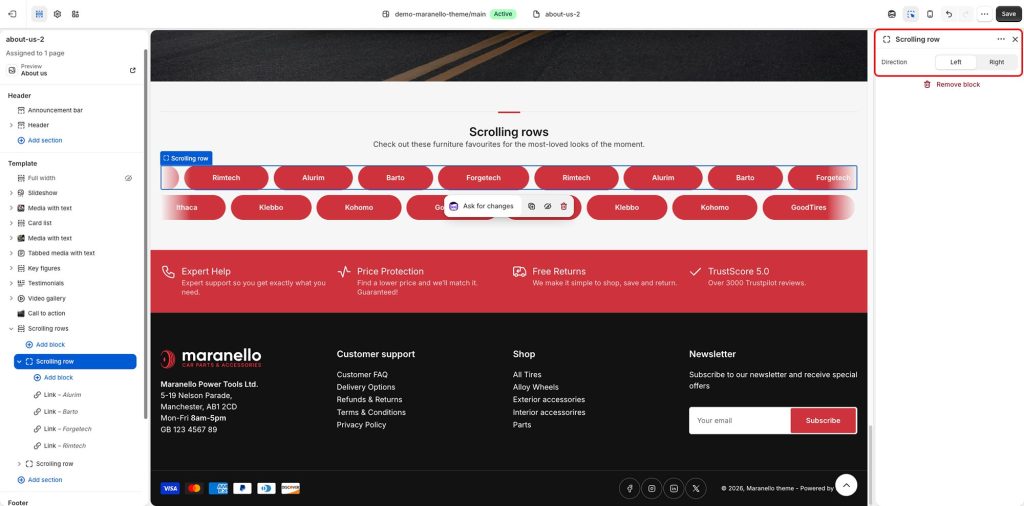
Direction: The direction of animation of links in this row.
Link block
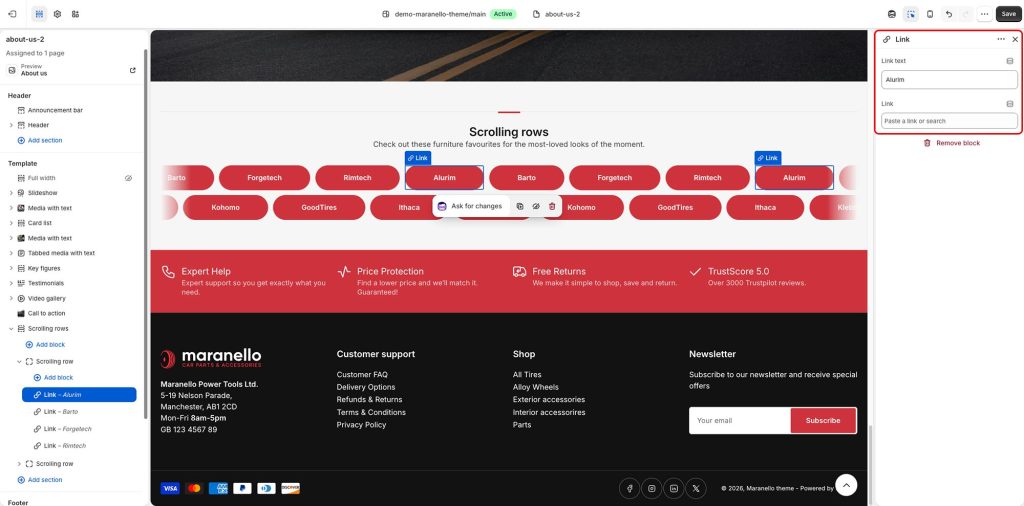
Link text: Set the text of the link.
Link: Set the destination for the link item (e.g., page, collection, product, external link, etc.).
Can't find what you are looking for? Feel free to submit a request.