Truly fine
Documentation.
How to enable RTL on your store
Last update:
This section was introduced in version 2.1RTL (Right-to-Left) layout adjusts the text and layout direction for languages that are read from right to left, such as Arabic or Hebrew, ensuring a natural and user-friendly browsing experience.
Steps to Enable RTL for Your Theme
Follow the steps below to enable Right-to-Left (RTL) text direction for the selected language in your Shopify theme.
- From your Shopify admin, navigate to Settings > Languages.
- If the language you want to use hasn’t been added yet, click Add language. Select the language from the dropdown menu, and then click Next. Turn on each domain where you want the language to be available, and click Done.
- When you’re ready to make the language available to customers, find the language in Settings > Languages, click the three-dot menu (⋯) next to it, and then click Publish.
- Find the language you want to enable RTL for, click Translate, and then select Translate & Adapt from the dropdown menu.
- In Translate & Adapt, select Default theme content.
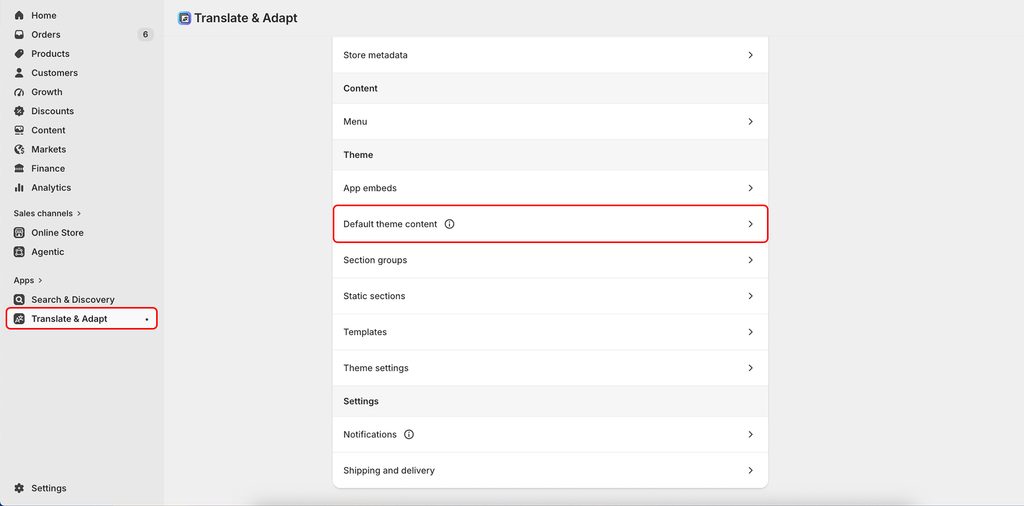
- In Default Theme Content, select Localization from the left sidebar menu.
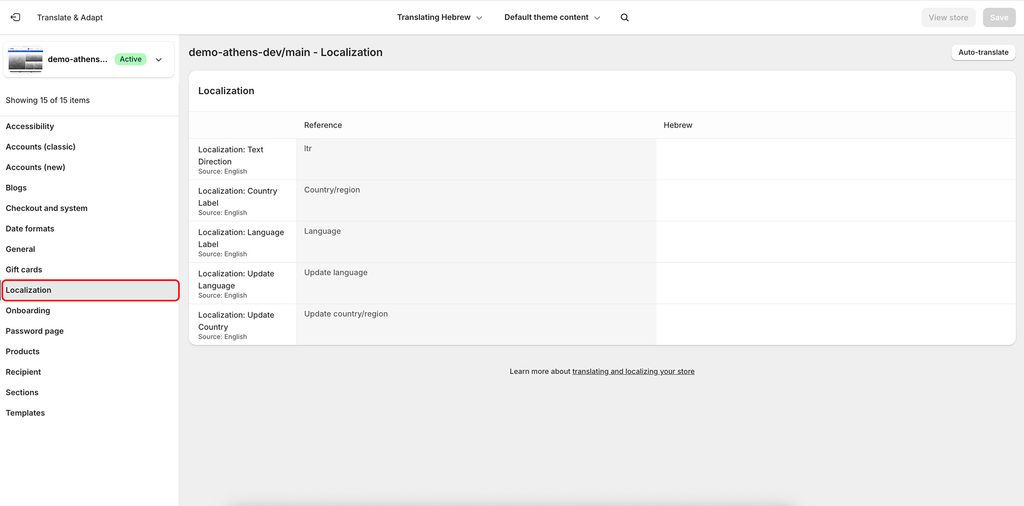
- In the Localization section, locate Localization: Text Direction. In the empty field for the selected RTL language (e.g. Hebrew), enter
rtl, and then click Save.

Can't find what you are looking for? Feel free to submit a request.