Truly fine
Documentation.
Upgrading to Tokyo v4.0 and later
Last update:
Beginning with version 4.0.0, Tokyo uses Shopify’s native color schemes. As Shopify doesn’t provide a way for theme authors to automatically migrate any old settings to new ones, any stores using previous versions of the Tokyo theme will need to either reconfigure their store’s colors from scratch, or follow this guide to migrate their existing colors into the respective color schemes.
1. Before you update to 4.0.0
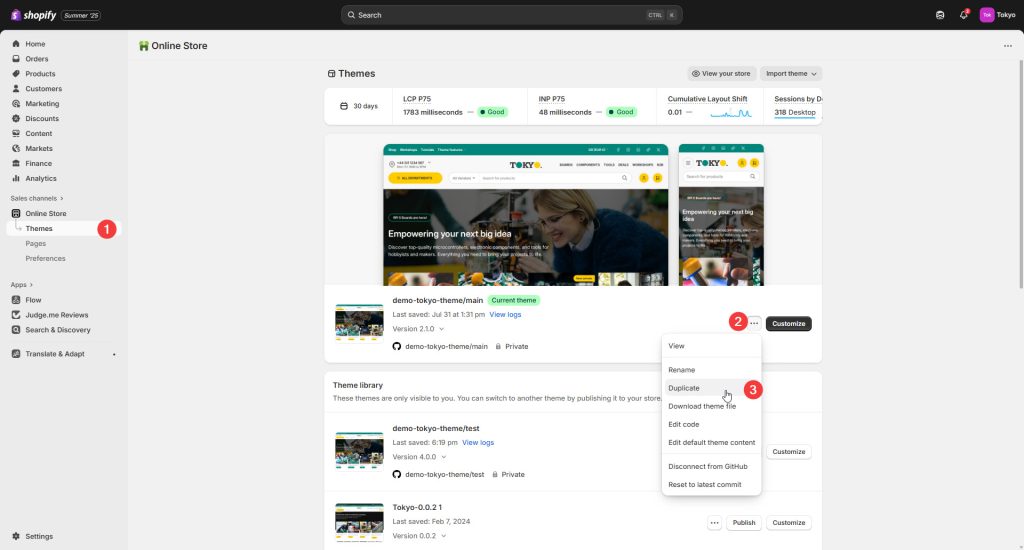
Keep a backup copy of the your published theme, as you are going to need it on the next steps. You can do so by going to Online Store → Themes → Click on the “…” button next to your published theme → Select “Duplicate”. Give it a descriptive name, such as “Tokyo – Before v4.0”. We will refer back to this theme copy on the next steps.
2. Update to the latest version
Update your published theme to the latest version. Follow the usual update process provided by Shopify. You should end up with a new theme copy. Rename it by clicking on the “…” button next to it, and give it a descriptive name, such as “Tokyo – v4.0”. We will refer back to this theme copy on the next steps.
3. Copy the old settings
On the “Tokyo – Before v4.0” theme copy, click on the “…” button next to it, and select “Edit code”. Locate and expand the “config” folder, and select the settings_data.json file.
Select and copy all the contents of the settings_data.json file.

4. Migration
On a new browser tab, open the Migrate Color Schemes utility.
First, make sure Tokyo is selected on the list of themes.
Then, select one of Tokyo’s presets. This is to ensure that any missing or undefined settings in your theme, will get back-filled from the most appropriate preset. If you remember which preset you installed originally, select that one. If you don’t, just select the Tokyo (Default) one.
Next, paste your settings_data.json‘s contents (that you copied in the previous step) inside the Input JSON text area. Click on the Process JSON button.
Finally, click on the Copy button of the Processed JSON output. This will copy the new settings_data.json code into your clipboard.

5. Paste the new settings
Now, on the “Tokyo – v4.0” theme copy, click on the “…” button next to it, and select “Edit code”. Locate and expand the “config” folder, and select the settings_data.json file.
Select and delete the file’s contents, and paste the code from the previous step. Make sure to save the changes by clicking on the Save button on the top right.

6. Verify and tweak
That’s it. Your colors have now been migrated to the new color schemes. Please note that due to the different color system and the addition of new color options, some of your store’s elements might not have their previous colors.
You should now open the Customize page of the “Tokyo – v4.0” theme copy, and verify that everything is to your liking, and if not, change any colors settings you want, re-assign color schemes to specific elements, or even create entirely new color schemes.
You can then re-apply any code modifications you may have in your old theme copy, and tweak any other settings as usual.
Can't find what you are looking for? Feel free to submit a request.