Truly fine
Documentation.
Video gallery section
Last update:
This feature was introduced in version 4.3.0Section settings
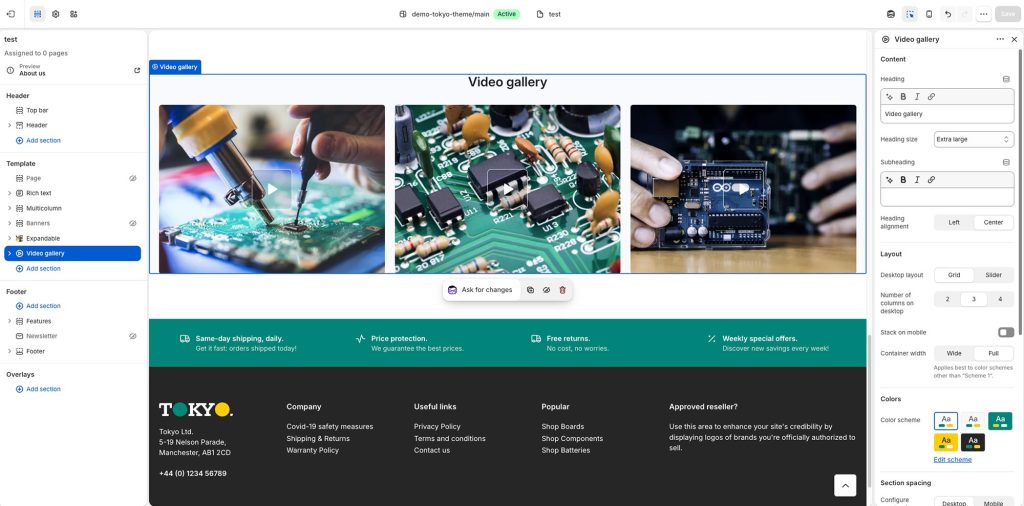
Heading: Set a title for this section. This is optional.
Heading size: Adjust the size of your heading to make your message stand out. Available options: Small, Normal, Large, Extra large, and Extra extra large.
Subheading: Set a subtitle for this section. Also optional.
Headings alignment: Align the heading and subheading Left or Center.
Layout
Desktop layout: With the “Grid” option you can create a typical grid layout of banners. A “Slider” option is also available that lets you create a simple slider layout. For this to work, the number of videos added in this section must be greater than the number of videos visible as set by the setting Number of columns on desktop.
Number of columns on desktop: Sets the number of columns (2, 3 or 4).
Move multiple slides at once: When enable, the carousel moves multiple slides at once. When disable, the course moves slide by slide.
Stack on mobile: By default, Tokyo will try to create a flexible scrollable horizontal list of videos on mobile. If you prefer to create a vertical list of videos though, simply enable this option.
Container width: Select either “Wide” or “Full” for the section’s container width. Choosing “Wide” extends the section a few pixels beyond the page’s boundaries on the left and right, whereas “Full” expands the section to cover the entire width of the viewport. This setting is designed to work along with a color scheme that contrasts the base background (i.e. Accent colors or Background 2).
Auto-rotate slides: Enables auto-rotation of the slides, as affected by the Rotate every option. This option only applies when Desktop layout is set to Slider.
Rotate every: Sets the number of seconds to wait (3 to 9) before slider are auto-rotated. This option only applies when Desktop layout is set to Slider and Auto-rotate slides is enabled.
Colors
Color scheme: Select one of the predefined color schemes as defined in Theme settings > Colors. For more information regarding the color schemes please refer to our article about creating your own color scheme.
Section spacing
The section spacing settings gives you the option to adjust the top & bottom section spacing values. Please note: If you select a color scheme with a background color, these settings will affect the spacing between the top or bottom of the section and the content of the section.
SEO
Heading tag: Select the appropriate heading level (H1, H2, or H3) based on how you want the section title to appear.
Visibility
Show section on desktop: Enable or disable the section’s visibility on desktop devices.
Show section on mobile: Enable or disable the section’s visibility on mobile devices.
Hide section if…: Enable this option when the section’s fields are bound to dynamic sources (i.e. metafields or metaobjects). The section will be hidden on the front-end if the most important field(s) are empty, i.e. when there is no meaningful output.
Video block
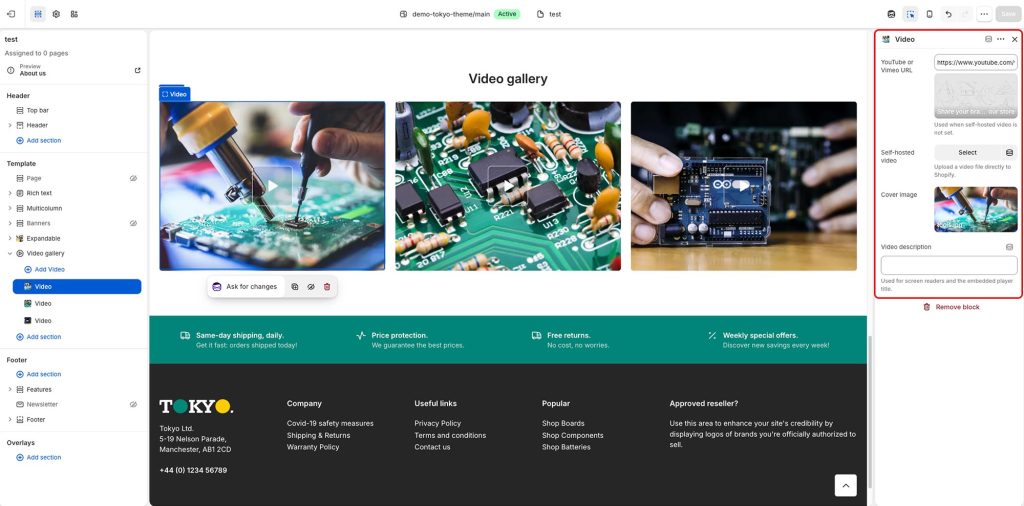
External video URL: A YouTube or Vimeo URL. You can simply paste either the link from your browser’s bar or the URL that YouTube or Vimeo gives when attempting to share a video.
Self hosted video: Upload a custom mp4 for your video. Note that if both a self-hosted and an external video URL are chosen, the self-hosted will take priority.
Cover image: Select a cover image for your video. Note that for optimal performance all videos in Tokyo are deferred media (meaning that they will load on request, when the user attempts to play them), so a cover image is highly advised at all times.
Video description: Describe the video to make it accessible for customers using screen readers.
Can't find what you are looking for? Feel free to submit a request.