Truly fine
Documentation.
Recently viewed products section
Last update:
This section was introduced in version 2.0The Recently viewed products section makes it easy for your customers to get back to products that they previously visited, giving them a chance to go back and purchase more easily.
Section settings
Number of products: The number of recently viewed products displayed (3 to 12).
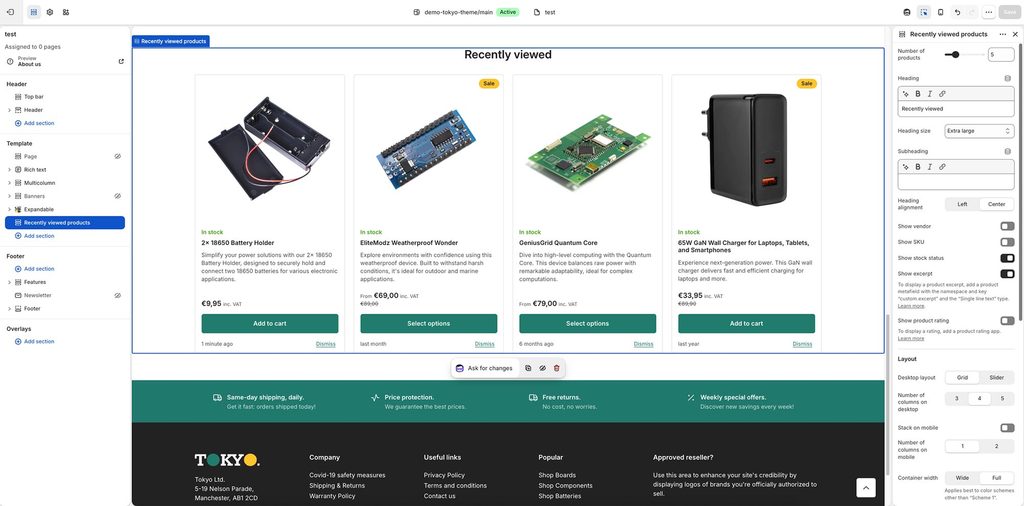
Heading: Set a title for this section. This is optional.
Heading size: Adjust the size of your heading to make your message stand out. Available options: Small, Normal, Large, Extra large, and Extra extra large.
Subheading: Set a subtitle for this section. This is optional.
Heading alignment: Select the alignment for the heading and subheading. Options: Left, Center.
Show vendor: Whether to show the vendor in each product card above the product title.
Show SKU: Displays the product’s SKU.
Show stock status: Whether to show the stock status of each product.
Show excerpt: To display a product excerpt, add a product metafield with the namespace and key “custom.excerpt” and the “Single line text” type.
Show product rating: Whether to show the product’s rating. Please note you will need a rating app for this to work. Learn more about product ratings here.
Layout
Desktop layout: With the “Grid” option you can create a typical grid layout of products. A “Slider” option is also available that lets you create a simple slider layout. For this to work, the number of products selected in this section must be greater than the number of products visible as set by the following setting Number of columns on desktop.
Number of columns on desktop: Sets the number of columns (3, 4, or 5).
Stack on mobile: By default, Tokyo will try to create a flexible scrollable horizontal list of products on mobile. If you prefer to create a vertical list of products though, simply enable this option
Number of columns on mobile: Select the number of columns that will be displayed on mobile (1 or 2), when Stack on mobile is enabled.
Container width: Select the width of the section container. Options: Wide, Full. Applies best with the “Accent” and “Background 2” color schemes.
- Wide: The content will appear with larger margins, without covering the full width of the page.
- Full: The content will stretch across the entire available width of the page.
Colors
Color scheme: Select one of the predefined color schemes as defined in Theme settings > Colors. For more information regarding the color schemes please refer to our article about creating your own color scheme.
Section spacing
The section spacing settings gives you the option to adjust the top & bottom section spacing values. Please note: If you select a color scheme with a background color, these settings will affect the spacing between the top or bottom of the section and the content of the section.
SEO
Heading tag: Select the appropriate heading level (H1, H2, or H3) based on how you want the section title to appear.
Visibility
Show section on desktop: Enable or disable the section’s visibility on desktop devices.
Show section on mobile: Enable or disable the section’s visibility on mobile devices.
Can't find what you are looking for? Feel free to submit a request.